
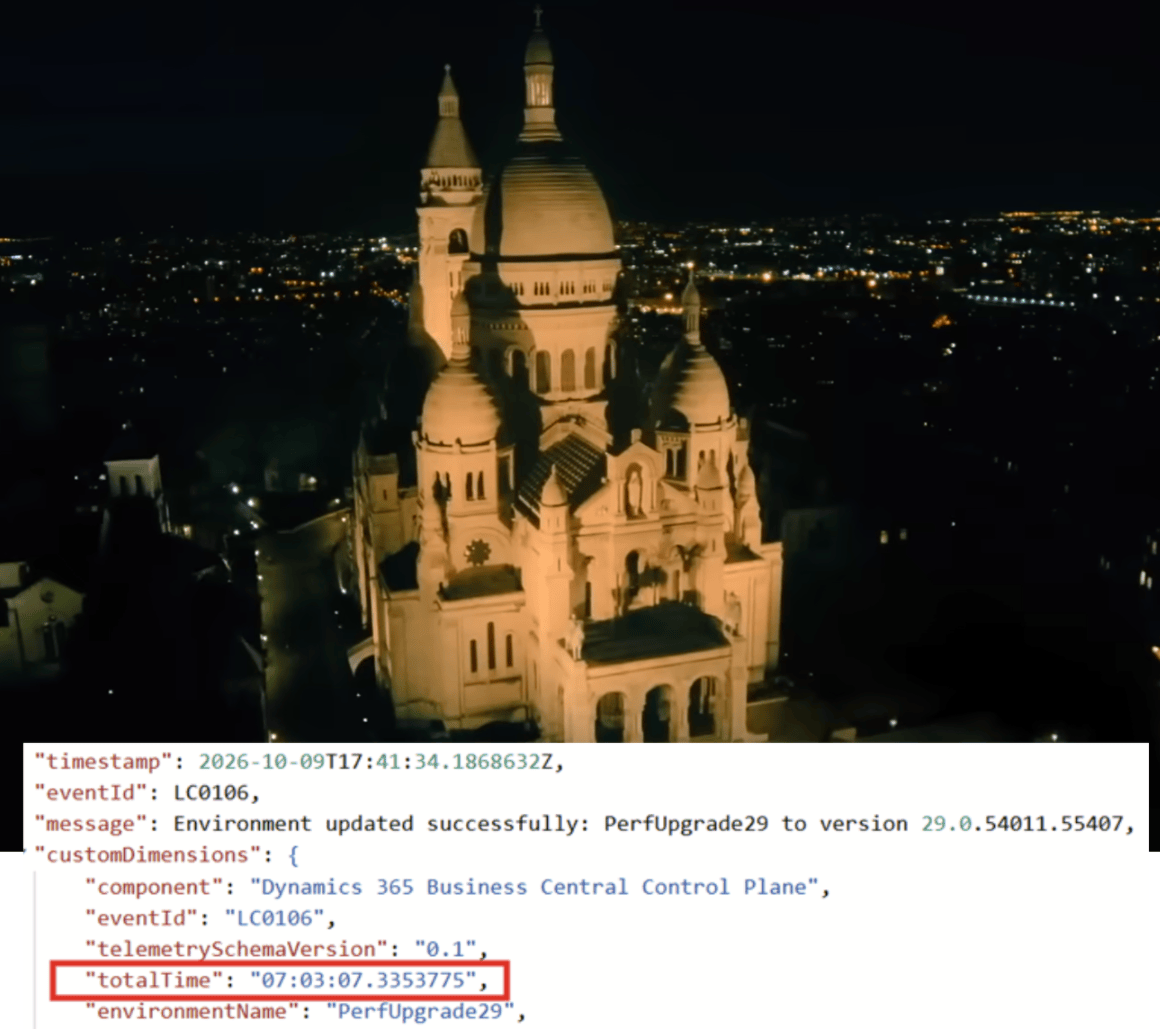
Directions EMEA 2026 in Paris was a blast. Chapeau to the organizers.
Such beastie is hard to make it happens and satisfy 3.5K attendees.
I have learned a new term: “Loopify”. Fun and so real at the same time.
But heart throbbed most when I made all the same step as John Wick in Montmartre with my wife…

That was truly worth the ticket to Paris! “222 Steps…”.
(NOTE: I encourage you to watch this video, and then get back to this blog post)
Get back to the Upgrade. There is one similar, but not the same, precedent: Dynamics 365 Business Central 2023 Wave 2 (version 23). That version reduced the number of JOINs to one. We all know that. Why, then, is this different?
- More tables with at least just 1 single Table Extension
- More data in existing environments
- More columns (AL Fields) in the destination SQL Base table
- More Microsoft (- the high table -) resource governance
- More…

If you sum up all these factors, you might notice that online upgrades are taking more time than any previous upgrades (that were not strictly dependent on data upgrades)
Few appetizers with small databases:

Ranging from 2 GB up to 20 GB databases, spans from 5 to 50 minutes.
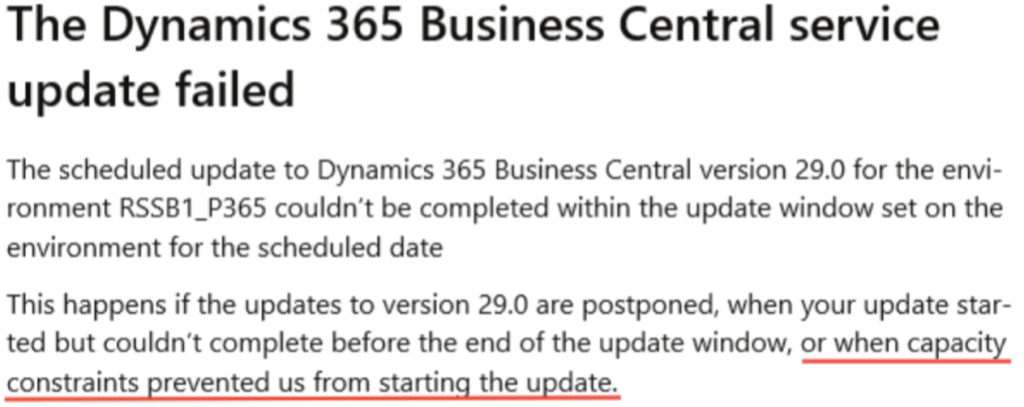
These are quite simple to handle but sometimes upgrade might also fail fast with notifications like the one below. If you have watched the video: the stairs to reach Montmartre are… complicated.
Let’s dive deep into some more interesting examples and what telemetry is showing up during the upgrade. That is very interesting… At least to me, John and Caine.
And I bet it would be helpful for you to take the stairs up to your own… Montmartre.
Tattoo in mind: No telemetry? No party!
Let’s get started and “Bonne chance…”

Peculiarity of this environment is:
- Live online since January 2023
- Database capacity = 200 GB approx.
- Custom table extension to store E-invoice in XML Format in Sales Invoice Header and Sales Cr.Memo Header.

And these are the reasons I chose it for this blog post.
The upgrade took initially 7 hours, and we have moved it down to 1 hour approx. In a classic Sandbox (not promoted).

ANATOMY OF AN UPGRADE
With a simple KQL Query, or asking BC Telemetry Buddy, you should be able to understand what is happening under the hood during the upgrade tenant Synchronization phase.
By simply changing the line | where sqlStatement != “ or | where sqlStatement == “, you will have the upgrade SQL or Extension footprint.
traces| where customDimensions.environmentName == "PerfUpgrade29_2" //Adjust as needed| where timestamp >= datetime("11/10/2026, 10:00:28.9559023 PM") //Adjust as needed : upgrade start| where timestamp <= datetime("11/10/2026, 11:10:37.3768405 PM") //Adjust as needed : upgrade end| where customDimensions.eventId !in ("RT0003","RT0004","RT0008")| project timestamp , session_Id , eventId = tostring(customDimensions.eventId) , message , sqlStatement = tostring(customDimensions.sqlStatement) , tableName = extract( @'(?i)\b(?:ON|FROM|JOIN|UPDATE|INTO)\s+(?:(?:"[^"]+"|\[[^\]]+\]|\w+)\s*\.\s*)?["\[]([^"$\]\r\n]+\$[^$"\]\r\n]+)\$[0-9a-f]{8}-[0-9a-f]{4}-[0-9a-f]{4}-[0-9a-f]{4}-[0-9a-f]{12}', 1, tostring(customDimensions.sqlStatement)) , duration = toreal(totimespan(customDimensions.executionTime))/10000 , customDimensions| extend msColumnLimit = toint(customDimensions.columnLimit) , totalColumnCount = toint(customDimensions.totalColumnCount) , columnsToTheLimit = toint(1024-toint(customDimensions.totalColumnCount))| where sqlStatement == "" //Use it with == "" to get the Extension Profile of your upgrade.| sort by timestamp desc
UPGRADE: SQL FOOTPRINT
It is a cycle of:
- ALTER base TABLE adding $ext fields definition
ALTER TABLE [TableName] ADD [FieldName1], … [FieldNameN]
2. UPDATE base table fields and DROP $ext table
Depending on the amount of rows and base record definition, this is typically the most time consuming part.
UPDATE [base]SET [base].[FieldName] = [ext].[FieldName], ... [base].[FieldNameN] = [ext].[FieldNameN]FROM [TableName] [base] WITH (TABLOCK) INNER JOIN [TableName$ext] [ext] ON [base].[PKField(s)] = [ext].[PKFields]WHERE NOT ( [ext].[FieldName] = 0 ... AND [ext].[FieldNameN] = N'' ) OPTION (MAXDOP 3);SET @rowsTransferred = @ @ROWCOUNT;DECLARE @result int = @rowsTransferred;BEGIN TRY DROP TABLE [TableName$ext];END TRY BEGIN CATCH IF ERROR_NUMBER() <> 3729 OR XACT_STATE() <> 1 THROW; SET @result = -1;END CATCH;SELECT @result;
With a tricky code.
This T-SQL copies rows, records how many were copied, and then tries to drop the base table. If the only problem is that another object still depends on that table, the script keeps the table and returns -1 instead of miserably failing.
If the drop fails, the CATCH block decides whether the error can be ignored:
Error 3729 means “Cannot DROP TABLE … because it is being referenced by object …”. Another object, such as a schema-bound view or a function, still depends on the table.
XACT_STATE() = 1 means a transaction is open and can still be committed.
The script ignores the error only when both are true: the error is 3729 and the transaction is still healthy.
In that case it sets @result = -1 to roughly mean “data copied, table not dropped”.
For any other error, or if the transaction is doomed (-1) or not open (0), THROW re-raises the original error so the caller (the NST) sees it.
Worth mentioning that parallelism is elevated to MAXDOP(3) in order to speed up the online update process.
3. CREATE Index in base, if existed in $ext
DROP INDEX IF EXISTS "IndexName" ON TableName;CREATE UNIQUE NONCLUSTERED INDEX IndexName ON TableName( FieldName, … FieldNameN, PKField(s)) WITH (MAXDOP = 3, DATA_COMPRESSION = PAGE)
Again, MAXDOP is temporarily raised and page compression applied, as per typical online procedure.
And the ones above, you can clearly / typically see during the synchronization process in telemetry. If you are (still) OnPrem, you might notice a slightly different way to UPDATE and DROP phase, e.g. MAXDOP(0), and other artifacts.
NOTE: Online version (and if you set them, also OnPrem) SQL Server builds stats on its own. With AUTO_CREATE_STATISTICS (or AUTO_UPDATE_STATISTICS) turned on, it builds them right away and the copy statement waits. That background step is not surfaced in Telemetry via NST but, trust me, it happens behind the scenes.
In short: you have fresh statistics on the new column moved from $ext to base table, and this happens during the update synchronization thanks to the AUTO_s enabled.

Below is an image of what the result might look like in telemetry:
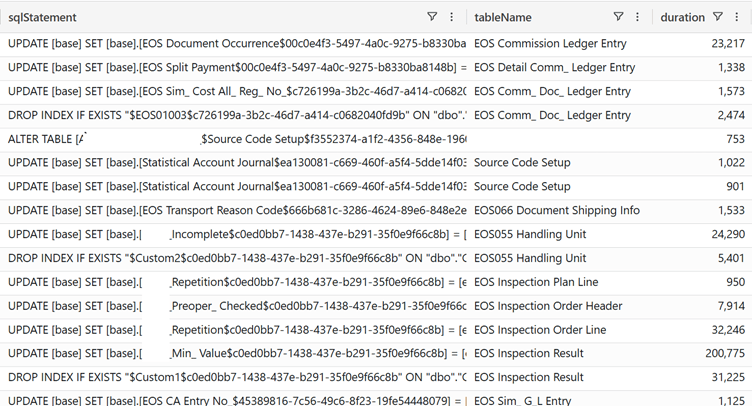
Past the synchronization phase, you have all other classic signals like in any other upgrade, and I will spare you this part. Lucky you!
UPGRADE: EXTENSION FOOTPRINT
Changing the filter in the KQL query to | where sqlStatement == “”, will remove the Long Running Query (LRQ) signals RT005 and few others, if any, and focus only on the rest of signals emitted during the upgrade.
An important one, introduced with Dynamics 365 Business Central 2026 Wave 2 is LC0065 that is showing up if you have more fields than the Microsoft threshold (currently set at 256 fields).
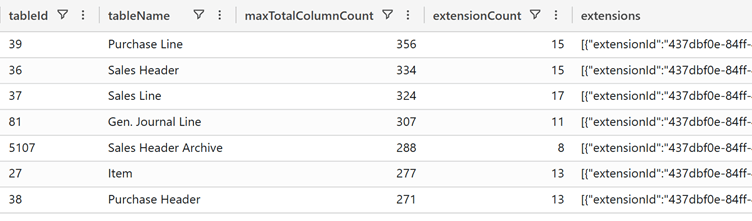
During the update, you can spot out which are the tables with high number of columns (where you might think to apply partial records, right?) and how far they are close to the real limit (1024).
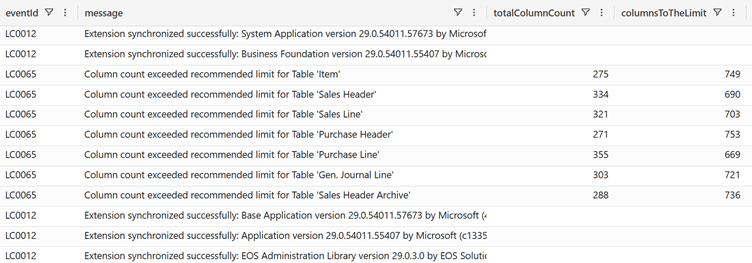
Considering the table above, you can get through telemetry, or asking BC Telemetry Buddy, which are the ones that are adding field(s) to them and decide to do your own Extension hygiene and flush unused ones into the toilet (in clean mode).
traces| where customDimensions.environmentName == "PerfUpgrade29_2" //Adjust as needed| where timestamp >= datetime("11/10/2026, 10:00:28.9559023 PM") //Adjust as needed| where timestamp <= datetime("11/10/2026, 11:10:37.3768405 PM") //Adjust as needed| where customDimensions.eventId == "LC0065"| project tableId = tostring(customDimensions.alObjectId) , tableName = tostring(customDimensions.alObjectName) , extensionPublisher = tostring(customDimensions.extensionPublisher) , extensionName = tostring(customDimensions.extensionName) , extensionVersion = tostring(customDimensions.extensionVersion) , extensionId = tostring(customDimensions.extensionId) , totalColumnCount = toint(customDimensions.totalColumnCount)| summarize maxTotalColumnCount = max(totalColumnCount) , extensionCount = dcount(extensionId) , extensions = make_set(bag_pack( "extensionId", extensionId, "name", extensionName, "version", extensionVersion, "publisher", extensionPublisher)) by tableId, tableName| sort by maxTotalColumnCount desc, tableName asc
And up the stairs in Montmartre we go… together.
Ready?… Yeah…

THE (OTHER) LESSON LEARNED
An evergreen.
DO NOT store BLOBs in the database (unless strictly necessary). It’s a database not a file share!
First upgrade run took 7 hours:
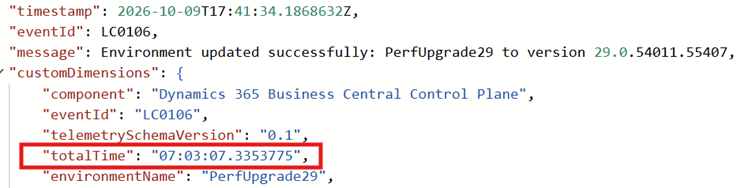
And most of the time was spent moving the BLOBs from table extension into base table: 5.5 Hours Sales Invoice Header, 16 minutes Sales Cr.Memo Header. NO COMMENT!


NOTE: You might spot out BLOB fields by checking UPDATE sqlStatement in LRQ and checking if they have “IS NULL” in the WHERE NOT clause – if you do not have source code at hands -:
… WHERE NOT ( …AND [ext].[QR Code Base64$e1d97edc-c239-46b4-8d84-6368bdf67c8b] IS NULLAND [ext].[EOS EDoc_ XML File$b3b8e132-0ba8-4429-9e94-851829ceb7a3] IS NULL…
The Mitigation.
That was (somewhat) easy. Move the BLOB field contents into a separated Azure Blob Storage (or you might opt for Sharepoint, or anywhere but darn out of the database) and let the user download them at will. It took many hours to move the content out but, in the end, it totally had its payback.
Just to demonstrate that we took two birds with a stone (faster upgrade, slim the database), below you can see the dimension of 2 separate tables where we have temporarily moved just the BLOB file content.

50 GB. No kidding.
And database dimension after moving all these BLOBs out of sight

Hope this post could be helpful for you in succeeding in your upgrade.
“Bye, bye Mr. Wick”
(Dedicated to Hugo Kornelis. R.I.P. …)


Leave a Reply