

Application hotfixes could be easily tracked using the appropriate signal diligently prepared by Microsoft some moons ago. Below an example
traces
| where timestamp between (_startTime .. _endTime)
| where customDimensions.environmentName has_any (_environmentName)
| where customDimensions.environmentType has_any (_EnvironmentType)
| where customDimensions.eventId == 'LC0159'
| project timestamp
, environmentName = customDimensions.environmentName
, environmentType = customDimensions.environmentType
, whatChanged = 'Environment'
, operation = 'App hotfix applied'
, onWhat = tostring( customDimensions.environmentName )
, sourceVersion = tostring(customDimensions.extensionSourceVersion)
, destinationVersion = tostring(customDimensions.extensionDestinationVersion)
And a typical result:

(this is just a snippet from the query elephant here BCTech/samples/AppInsights/KQL/Queries/HelperQueries/AllEnvironmentChanges.kql at master · microsoft/BCTech (github.com))
And this should be useful in cases like the following: A simple case of modern troubleshooting with telemetry. – Dynamics 365 Business Central tales, myths, legends. And something serious. (duiliotacconi.com)
What about PLATFORM hotfixes?
HMMMM… I feel your perplexity… I am on it. Here:
Major updates and minor updates for Business Central online – Business Central | Microsoft Learn
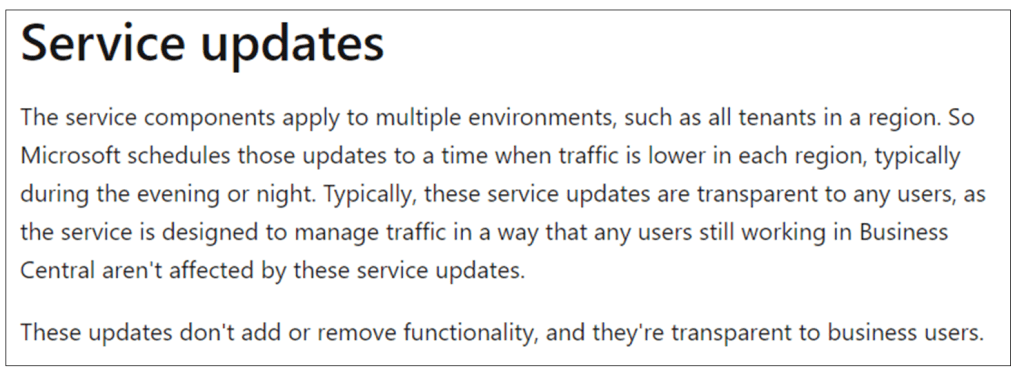
AH! You have skipped that, right? Me too!
Maybe because to find this out you have to scroll, scroll, scroll, scroll, scroll…. And scroll down the page.

Hold on. There is yet another page talking about service updates and stating the same:
Service overview for Business Central online – Business Central | Microsoft Learn
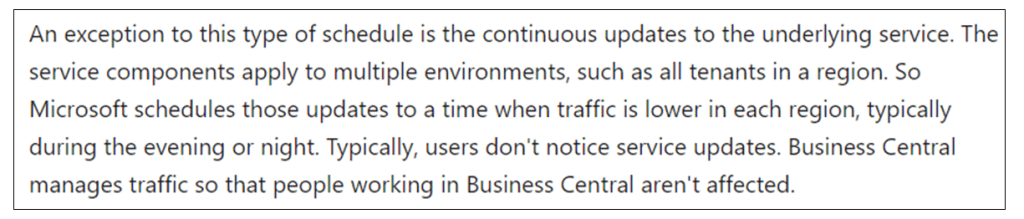
And this page has been updated recently, while few months ago had the following sincere verbatim:
“Service operations happen all day, every day, to always provide best experience”.
Probably this has been changed because of “all day / every day” formula might be a bit scary, overall if you are a customer running 24/7 businesses.
In any case these are happening. And they are happening for GOOD (of course).
How to keep track, then, if a platform hotfix has been deployed?
Currently there is NO direct platform signal emitted BUT you might use a simple trick.
- Filter all signals that does not have a blank componentVersion
- Group them by component version in timestamp bins of 1 minute
- Take the max value of each bin
traces
| where timestamp between (_startTime .. _endTime)
| where customDimensions.environmentName has_any (_environmentName)
| where customDimensions.environmentType has_any (_EnvironmentType)
| extend environmentName = tostring( customDimensions.environmentName )
    , environmentType = tostring(customDimensions.environmentType)
    , componentVersion = tostring(customDimensions.componentVersion)
| where componentVersion <> ""
| summarize max(bin(timestamp,1min)) by environmentName, componentVersion
| sort by max_timestamp desc
And this is an example taken from one live Online environment and in a range of the past 30 days.

What you can see in the case above is:
- The top value is the current platform version
- In the past 30 days, platform changed 7 times
- Microsoft respected the patching window in the night between 4 AM to 5 AM
When this is helpful?
- Troubleshooting. There have been cases where service was unavailable for a very short period of time. Typically few minutes. A change in platform version, revealed through the query above, could be very helpful in determine what was the root cause: something happened at platform level in that specific time frame.
- Proactively monitoring platform hotfixes. You might have an open support request or, if you are a partner, engaged product group through Viva (formerly Yammer) and a platform hotfix is rollling all over the world. This query is suitable to determine if and when that specific pipeline hit your environment. In this way you can test the changes made and provide a prompt feedback to support / Microsoft about the effectiveness of the problem resolution.
- Platform changes behavior. This is the opposite of point 2. Imagine that users are telling you “hey this platform feature is acting weird today, yesterday it was working like a charm”. First train stop: check if there have been platform (and/or application) hotfixes overnight.
Bottom line. I have created the platform query above and its Azure Data Explorer (ADE) dashboard representation myself, but I have just noticed there is a similar one here: BCTech/samples/AppInsights/KQL/Queries/HelperQueries/ComponentUpdates.kql at master · microsoft/BCTech (github.com).
Feel free to use what suits you best. I am always happy, as long as you are using telemetry. XOXO.
 Dynamics 365 Business Central tales, myths, legends. And something serious.
Leave a comment